



Webex Calling
Webex Calling is our new cloud-based phone service. Users may have a physical desk phone as well as a softphone, which is a computer-based application that functions like a traditional phone. If you choose not to use a physical desk phone, please ensure you have a high-quality headset or audio device with a microphone to make and receive calls. This experience is similar to using applications such as Zoom or Microsoft Teams.
With Webex Calling, you can place outbound calls and receive inbound calls just as you have with our previous phone system. The service includes the same core features you rely on, including long-distance calling, voicemail, and additional calling capabilities.
Employee voicemail is integrated with your email and will go into your inbox so you can easily listen to them.
Resetting Your Voicemail PIN
To reset your voicemail PIN, please follow the steps below:
- Log in to the WebEx User Hub portal using your StarID username and password. NOTE: You may be asked for your MFA code.
- Select Settings from the main menu.
- Navigate to the Voicemail tab.
- Click Reset Voicemail PIN and follow any on-screen prompts to complete the process.
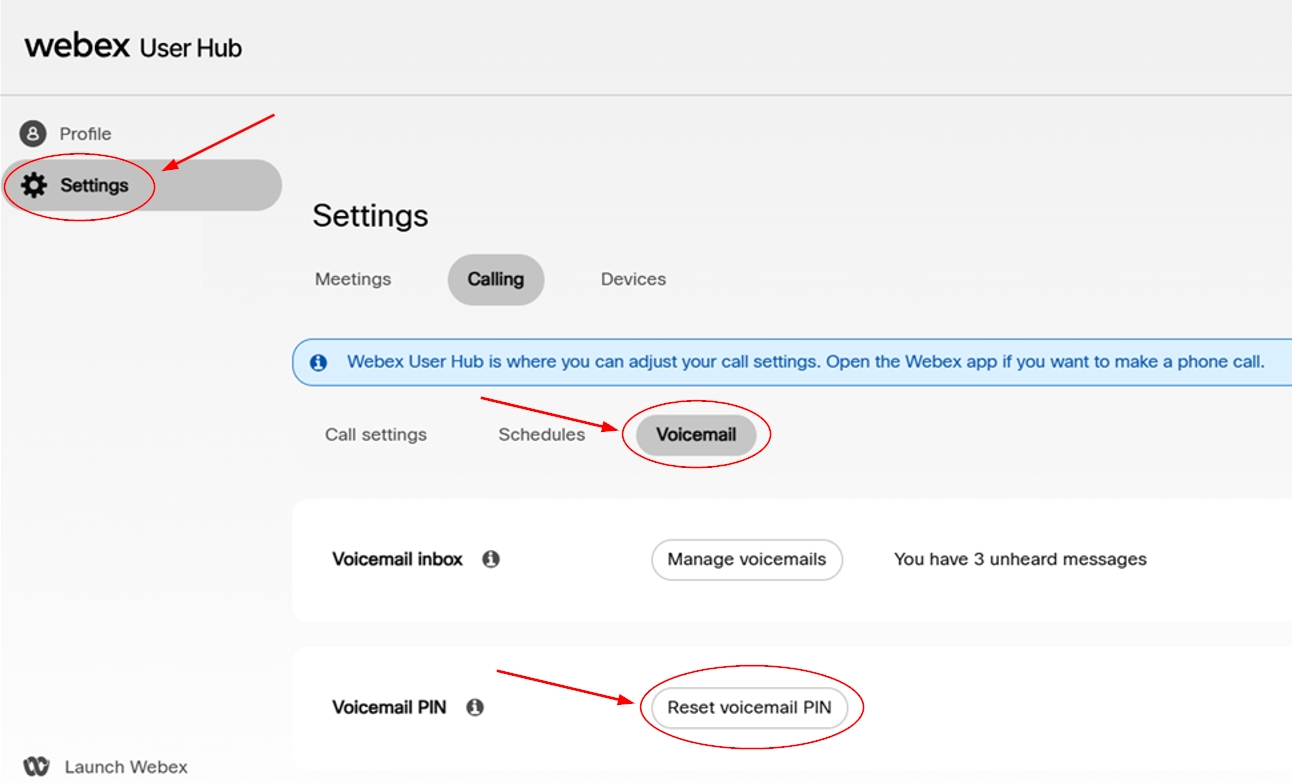
Once the reset is complete, your new voicemail PIN will take effect immediately. If this is your first time setting up voicemail, please follow the initial setup instructions provided in the PDF. You can also listen to your voicemail directly within this portal.
Webex Calling Guides & Resources
| Title | Download Link |
|---|---|
| Alexandria College How to set your Webex voicemail PIN | Download Alexandria College How to set your Webex voicemail PIN Document pdf |
| Alexandria College Webex Calling Mobile App Installation | Download Alexandria College Webex Calling Mobile App Installation Document pdf |
| Alexandria College Webex for Classroom Phones | Download Alexandria College Webex for Classroom Phones Document pdf |
| Alexandria College Webex for Employee Phones | Download Alexandria College Webex for Employee Phones Document pdf |
| Alexandria College Webex in Microsoft Teams | Download Alexandria College Webex in Microsoft Teams Document pdf |
| Alexandria College Webex Mobile | Download Alexandria College Webex Mobile Document pdf |
| Alexandria College Webex Quick Reference Guide | Download Alexandria College Webex Quick Reference Guide Document pdf |